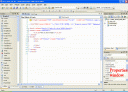
Before you begin learning C# and performing the exercises on this website, you should be comfortable with some basic concepts of the Visual Web Developer or Visual Studio software. In this lesson I will cover the important aspects of the Integrated Development Environment (IDE). The IDE has lots of features, toolbars and different windows. You don’t need to understand all of them in order to become proficient with C# and .NET. Make it a goal to learn the basics that we cover here first and then try to explore one new feature of the IDE each week on your own as you continue to improve your skills in the .NET environment.
First a word about the design of web pages in ASP.NET and how that relates to using the IDE. When you create a web page (a.k.a. web form) in ASP.NET, you should always choose the option to “Place code in a separate file”. This means that the source code for the web page that you created, gets put into its own file, separate from the presentation file. In ASP.NET, the presentation of a web page is split into two files: the .aspx file and the .cs file. The .aspx file contains some HTML tags, along with some special ASP.NET tags called server controls. The .cs file contains C# source code that can be called from the .aspx file whenever a button is clicked (or another event occurs in the web application). These two files need each other and do not work independently. When you are developing a web page in ASP.NET using the IDE, you have to switch back and forth from editing the .aspx file to editing the .cs file. The .cs file is also referred to as the code behind file. Microsoft designed these two separate files so that you can separate your application’s look and feel, from the programming behind it. This makes development and maintenance straightforward.
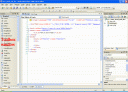
In the following sections I will go over the four basic windows in the Visual Web Developer IDE. Each window in the IDE has its own distinct purpose. When you open Visual Web Developer and create your first new web site you will see that four windows open up and your IDE looks like this:
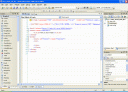
The Solution Explorer window
The Solution Explorer is the little window in the upper right of the IDE. The Solution Explorer lists all the various project artifacts for your web site such as .aspx files, .cs files, .config files, resource files such as images, references and more. The Solution Explorer allows the developer to navigate around the project and edit the various files that the project contains. A web site “project” is a collection of related files and resources that make up a web application.
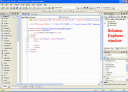
The Code Editor window
The Code Editor is the larger window in the middle of the IDE. The Code Editor window is where you actually make changes to the look and feel of your ASP.NET web pages and edit the C# source code that runs in your web site. This is the window where you will spend most of your time.
The Toolbox window
The Toolbox is the long window on the left hand side of the IDE. The Toolbox contains server controls that can be added to your web pages. Examples of server controls you can use are labels, text boxes, buttons and drop down boxes. The items shown in the Toolbox are dragged onto your web pages when you want to use them.
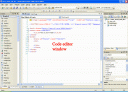
The Properties window
The Properties window can be found in the lower right side of the IDE. This window allows you to change the look and feel of objects that are contained in your web pages. For example, you can use the Properties window to change the font for a text box on one of your web pages.